If you’re looking to get a refund after 48 hours for your ChatGPT subscription billed through Google Play, you’re in the right place. Billing with Google Play can sometimes feel like a black box, especially beyond the standard refund window. But before you click around or dig through settings, let me save you some frustration first: search your email inbox for the receipt you received from Google Play. That receipt is the key to understanding your billing channel and refund options because billing channel matters way more than the device you’re using or how you access ChatGPT.
Also, watch out for those tiny, gray links in your Google Play purchase emails—they’re often overlooked but lead directly to refund requests. And, just a heads-up, popup blockers and signing into the wrong Google account can muddy the waters when you try to request a refund online.
Why the Billing Channel Matters More Than Your Device
It’s common for users to try to fix refunds through the ChatGPT app or website and get frustrated when things don’t line up. That’s because the refund process is governed by the billing platform you paid through, not OpenAI’s app or browser interface.
For example:
- If you pay via Google Play Store, refunds are handled by Google. If you pay via Apple App Store (iOS users), Apple manages refunds separately. If you pay directly on OpenAI.com using a credit card or Stripe, you’ll use the Stripe portal or contact OpenAI Support.
This is why simply uninstalling the ChatGPT app or canceling inside the app won’t automatically guarantee a refund. The actual money flow happens between you and the billing platform.
Quick reminder:
Apple and Google subscriptions are completely separate systems. If you have multiple devices or accounts with different billing setups, check your receipt closely to confirm which system charged you.
Step 1: Locate Your Google Play Receipt
Before you do anything else, search your inbox for "Google Play receipt ChatGPT" or check for emails from “@google.com” related to purchases on or around the date you subscribed.
Here’s why this step is critical:
- The receipt confirms the exact Google account used to purchase ChatGPT. The receipt message contains direct links to your Google Play order details and refund options. You’ll see transaction IDs and purchase dates which help when contacting Google Support.
Miss this step, and you might accidentally try to request a refund from the wrong account or the wrong store.
Step 2: Requesting a Refund From Google Play After 48 Hours
Google Play has a standard policy encouraging refund requests within 48 hours of purchase, but don’t give up if you’re past that window. Google sometimes grants refunds beyond that for valid reasons.
Here’s how to submit the refund request:
Go to Google Play Order History and sign in with the Google account that made the purchase. Find your ChatGPT subscription or purchase in the list. Use filters or search terms like "ChatGPT" or "OpenAI." Click on Order Details next to the purchase. Click the Report a Problem button (usually a small, sometimes gray link) under the purchase details. Select the option that best describes your refund reason. Provide a detailed explanation in the text box to increase your chances (e.g., “I did not intend to subscribe” or “Service did not meet my expectations”). Submit the form.Important: Keep your browser popup blocker disabled while doing this. Refund request forms sometimes open in a new window or popup.
What Happens Next?
Google will typically respond within a few days, but refunds after 48 hours can take about 10 business days to process or get a definitive answer. The refund, if approved, will be credited back to your original payment method.
If you do not see any email reply from Google or no refund after 10 business days, you can try contacting Google Play support directly.
Step 3: Can You Also Cancel ChatGPT Web Subscription?
Sometimes people subscribe to ChatGPT Plus through the web (billing powered by Stripe) and also sign in on their Android device. These are two different billing mechanisms.
Learn more hereIf your charge came via Google Play, canceling your ChatGPT subscription from OpenAI’s billing portal will NOT affect your Google Play subscription.
Here’s what to do if your ChatGPT subscription is billed directly by OpenAI (using Stripe):
Go to chat.openai.com and sign in with your account used to subscribe. Click your profile in the bottom left corner. Select Manage Subscription — this opens the Stripe Billing Portal. Here you can cancel or view invoices and receipts.Since Google Play subscriptions are separate, your web Stripe cancelation won’t issue a refund for Google Play charges.
Apple and Google: Why They Are Separate Systems
Many people get confused between Apple and Google Play billing because devices might be the same (e.g., using ChatGPT on an iPad and Android phone). But each store maintains its own purchase records and refund policies.
A key sign you’re dealing with an Apple subscription:
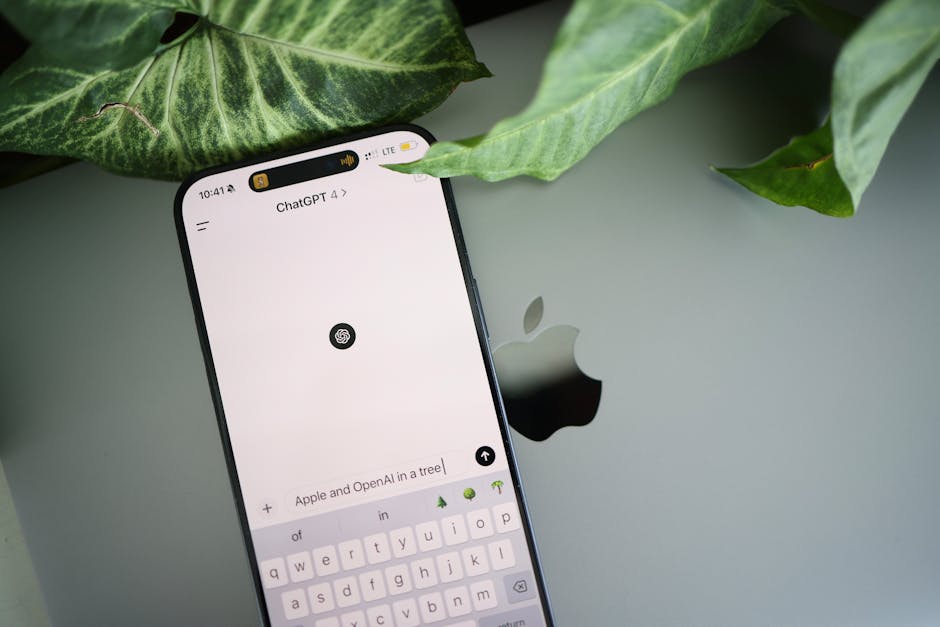
- Receipt email from Apple, usually titled “Your receipt from Apple.” Purchased on an iPhone, iPad, or Mac. Receipt includes an “Invoice ID” from Apple.
For Google Play subscriptions:
- Receipt email from Google Play (Google Payments or Google Play Store). Purchase made on Android devices or Google Play Store. Receipt shows “Order Number” starting with GPA.
Each requires a refund request made through the respective store, not through OpenAI directly.
What About the OpenAI Help Chat?
Occasionally, users try OpenAI Help Chat or support channels seeking refunds. Here’s what you need to know:
- The OpenAI Help Chat can confirm your subscription type if you provide enough info. They can assist with troubleshooting and web subscription refunds. However, for Google Play or Apple refunds, you will be directed back to the appropriate billing channel.
Pro Tip: Before jumping into Help Chat, have your receipt handy. This keeps conversations efficient and avoids back-and-forth over which account or store you used.
Summary Table: How to Request ChatGPT Refunds Based on Billing Channel
Billing Channel Where to Find Receipt Refund Request Method Expected Processing Time Google Play Store (Android) Email from Google Play; Google Play Order History Google Play Purchase Order > Report a Problem Up to ~10 business days Apple App Store (iOS) Email from Apple; Apple Purchase History Apple’s Report a Problem site or Settings > Subscriptions Typically 5-7 business days Direct Purchase via OpenAI Website (Stripe) Email Receipt from OpenAI; stripe portal link in account Stripe Portal via OpenAI Account or Contact OpenAI Support Usually within a few business daysFrequently Asked Questions (FAQs)
Q: I’m past 48 hours after purchase; will I still get refunded?
A: Google Play sometimes allows refunds after 48 hours, especially for genuine issues or accidental purchases. Be clear and polite in your refund reason and try contacting Google Support directly if automatic options don’t work.
Q: I canceled my ChatGPT subscription via the app, but I’m still being charged. Why?
A: Cancelling subscription inside ChatGPT or on the website does not cancel your Google Play or Apple subscription. You must cancel directly within the respective app store’s subscription settings.
Q: How long does a Google Play refund take?
A: Typically about 10 business days. Keep an eye on your payment method bank account and your Gmail for Google Play confirmation emails.
Q: Can the OpenAI Help Chat make a refund for Google Play purchases?
A: No, they can only guide you or confirm your details. Refunds must be handled via https://instaquoteapp.com/if-i-cancel-chatgpt-on-day-3-of-a-30-day-cycle-how-many-days-do-i-keep-plus/ Google Play’s system.
Final Thoughts
When it comes to getting a refund after 48 hours for your ChatGPT subscription billed through Google Play, the critical first step is always find your receipt and confirm your purchase channel. Only then can you navigate Google Play’s refund process confidently. Avoid uninstalling the app or fiddling with account settings before that—those steps won’t solve billing issues.
With patience and by following the steps outlined and allowing about 10 business days, you stand a good chance of recovering your funds if the situation qualifies.
And if all else fails, remember: Keep receipts handy, disable popup blockers when requesting, and make sure you’re logged into the right Google account before submitting any requests.
Good luck!
